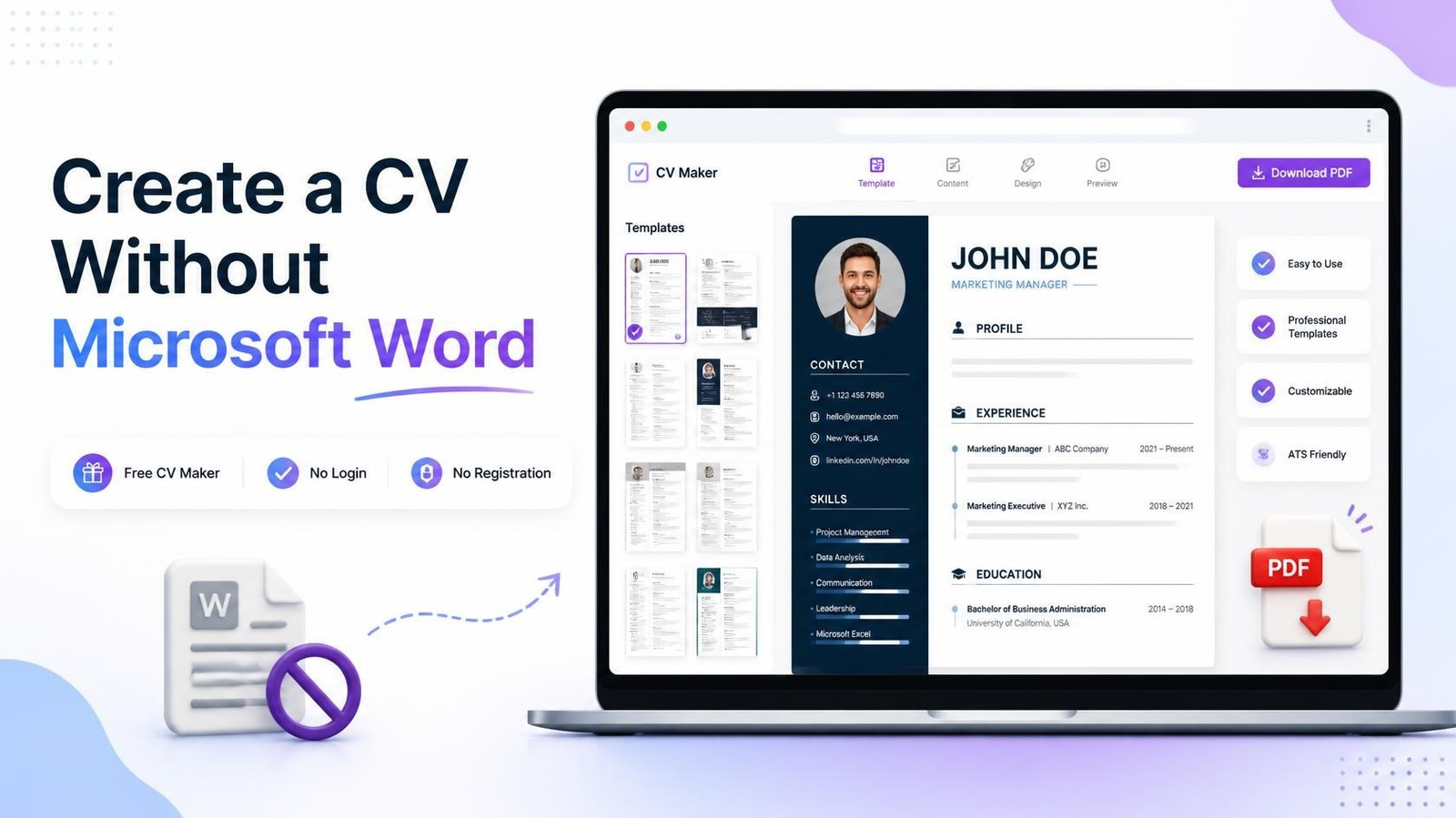
Creating a professional CV doesn't mean you need Microsoft Word.
While Word has been a popular choice for creating resumes for years, many job seekers now use online CV makers and CV creators to build professional documents faster and with less formatting work.
If you don't have Microsoft Word, don't want to spend time adjusting margins and spacing, or simply want an easier way to create your CV, you can create a professional CV online using a free CV maker.
The best part? You don't necessarily need to create an account or register before getting started.
Do You Need Microsoft Word to Create a CV?
No. Microsoft Word is just one way to create a CV.
You can create a professional CV using:
- An online CV maker
- A free CV creator
- A resume builder
- A Google Docs template
- A downloadable CV template
- An online document editor
For people who want a quick and simple solution, an online CV maker can be much easier than starting with a blank Word document.
Instead of manually setting fonts, margins, headings, spacing, and page breaks, you can enter your information into a ready-made CV template and preview the result.
Why Use a Free CV Maker Instead of Microsoft Word?
Microsoft Word gives you a lot of control, but that control also means you may have to do much of the formatting yourself.
An online free CV maker can simplify the process.
1. No Manual Formatting
With a CV creator, your information can be organized into predefined sections such as:
- Personal information
- Professional summary
- Work experience
- Education
- Skills
- Certifications
- Languages
- Projects
You can focus on your content instead of spending time fixing the layout.
2. Professional CV Templates
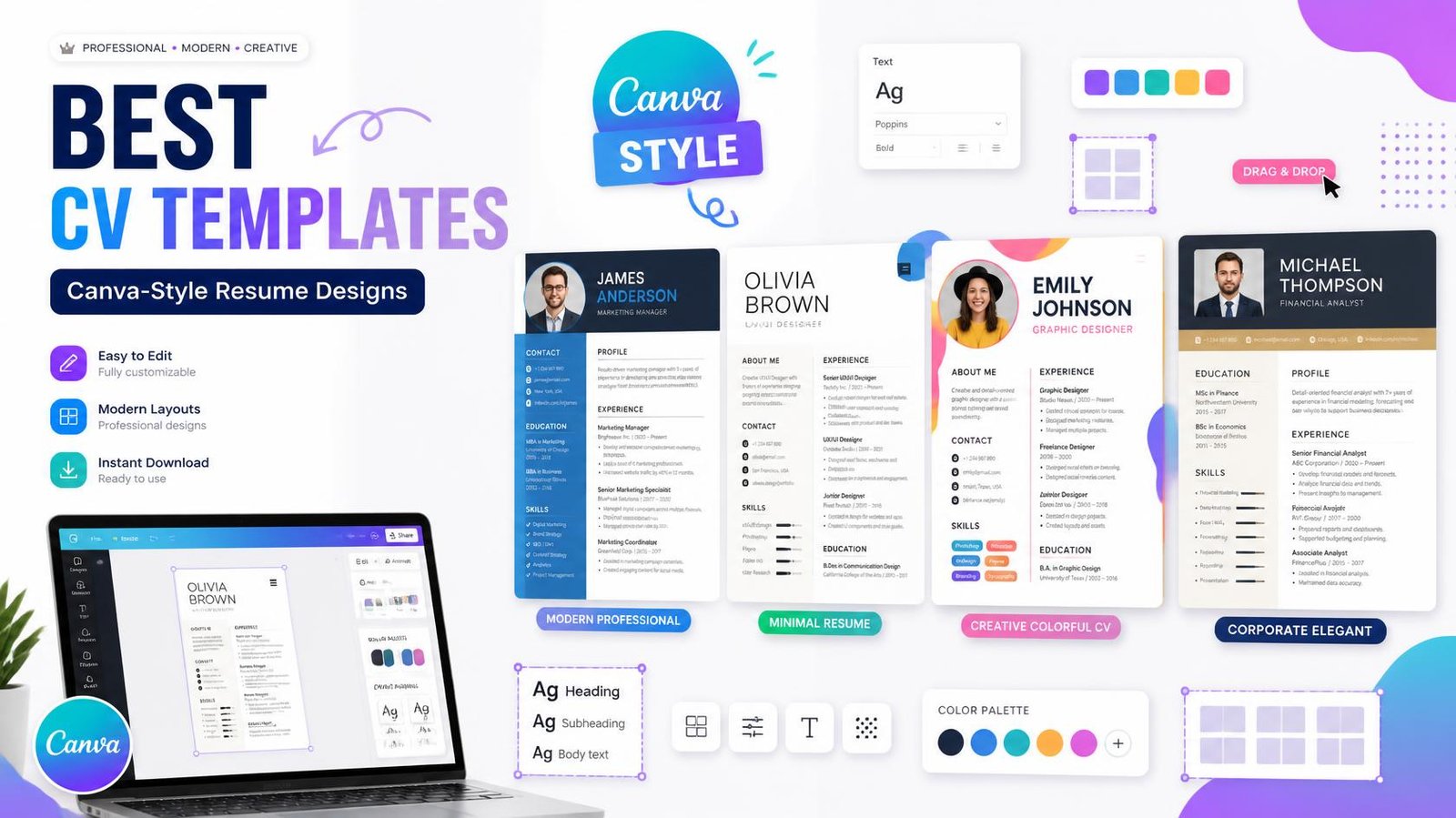
A good CV maker provides professionally structured templates that are designed to keep your information organized and easy to read.
You can choose a layout that suits your profession and experience without designing the entire document yourself.
3. Create Your CV Online
You don't need to install Microsoft Word or another desktop application.
A browser-based CV maker online lets you create your CV from a computer, tablet, or smartphone.
This can be particularly useful when you need to update your CV quickly while applying for jobs.
How to Create a CV Without Microsoft Word
Creating a CV online is simple.
Step 1: Choose a CV Maker
Start with a reliable online CV creator that allows you to build your CV directly in your browser.
If you're looking for a simple option, you can use MyCVMaker to create your CV online without going through a complicated registration process.
Step 2: Enter Your Personal Information
Add your basic professional contact information, such as:
- Full name
- Phone number
- Email address
- Location
- Professional title
- LinkedIn or portfolio link
Only include information that is relevant and appropriate for your job application.
Step 3: Add Your Work Experience
Enter your previous jobs, internships, freelance work, or other relevant experience.
For each position, include your:
- Job title
- Employer
- Employment dates
- Main responsibilities
- Relevant achievements
Try to focus on results rather than simply listing everything you were responsible for.
Step 4: Add Your Education
Include your relevant educational qualifications.
You can add:
- Degree or qualification
- School, college, or university
- Graduation year
- Relevant achievements
Students and fresh graduates can also include academic projects, internships, volunteer work, or relevant coursework.
Step 5: Add Your Skills
Choose skills that are relevant to the job you want.
For example, a marketing professional might include:
- Digital Marketing
- SEO
- Content Marketing
- Social Media
- Google Analytics
A web developer might include:
- HTML
- CSS
- JavaScript
- PHP
- WordPress
- MySQL
Avoid filling your CV with skills that have little connection to the position.
Step 6: Choose Your CV Template
Select a clean and professional template.
Your CV should be easy to scan rather than overloaded with graphics, colors, or decorative elements.
If you're applying through an online job portal, an ATS-friendly CV with clear headings and simple formatting can also be a sensible choice.
Step 7: Preview and Download Your CV
Before submitting your CV, carefully check the final version.
Make sure your:
- Contact information is correct
- Dates are accurate
- Spelling is correct
- Sections are properly aligned
- Text isn't cut off
- PDF looks professional
Once everything looks good, download your CV and use it for your job applications.
Can I Create a CV Without Login?
Yes, some online CV creators allow you to build a CV without creating an account.
A no login CV maker can be useful if you simply want to create your CV quickly without remembering another username or password.
There is also a difference between:
No login: You don't have to sign into an existing account.
No registration: You don't have to create an account in the first place.
If you prefer a simple experience, look for a no registration CV maker that lets you start creating your CV immediately.
Can I Create a CV Without Registration?
Yes. A CV maker without registration can allow you to enter your information, customize your CV, preview it, and prepare it for download without completing a lengthy signup process.
This is especially useful when you're applying for jobs and don't want to spend extra time creating accounts on different websites.
Create Your CV Without Microsoft Word
If Microsoft Word isn't available on your computer, you don't need to delay your job application.
With MyCVMaker, you can create a professional CV online without Microsoft Word.
You can enter your information, organize your experience and skills, customize your CV, and preview the final result directly in your browser.
Create your CV with MyCVMaker:
No complicated Word formatting is required.
Why a No-Login CV Maker Can Be Useful
When you're applying for several jobs, convenience matters.
A no login CV maker can remove unnecessary steps between you and your finished CV.
You don't have to:
- Create another password
- Complete a lengthy registration form
- Wait for an account confirmation
- Learn complicated formatting tools
- Start with a blank page
Instead, you can focus on writing a CV that represents your experience and qualifications.
Frequently Asked Questions
Can I make a CV without Microsoft Word?
Yes. You can use an online CV maker, CV creator, or resume builder to create your CV directly in your browser.
What is the best free CV maker?
The best free CV maker is one that provides the features you actually need, such as professional templates, easy editing, PDF export, and a simple user experience.
Can I create a CV without registration?
Yes. Some CV creators allow you to create a CV without registration or an account.
Can I create a CV without login?
Yes. A no-login CV maker allows you to start creating your CV without signing into an existing account.
Is an online CV maker better than Microsoft Word?
It depends on your needs. Word provides extensive manual control, while an online CV maker can make the process faster by providing ready-made templates and structured sections.
Can I create a CV on my phone?
Yes. Many browser-based CV makers are designed to work on smartphones, allowing you to create and update your CV without a computer.
Final Thoughts
You don't need Microsoft Word to create a professional CV.
A free CV maker can help you create, format, preview, and prepare your CV online without spending hours adjusting margins, fonts, tables, and page breaks.
If you want a simple way to create your next CV, try MyCVMaker and build your professional CV online without complicated registration.
Start creating your CV today: